


TeraCopy – Fast and Reliable File Copying Utility for Windows
One of the most common complaints about newer versions of Windows is slow copy speed, especially when transferring multiple files over a network. TeraCopy helps you speed up file copying, particularly when you frequently transfer large amounts of data and need to pause the process to perform other demanding tasks.
Normally, when copying or moving data that contains many files or very large files, the hard drive has to perform intensive read/write operations, which affects overall system performance. In addition, the maximum hard drive speed is not always achieved, resulting in long copy times.
On some low-spec computers, copying large amounts of data can even cause system freezes, or result in corrupted files that cannot be used after copying. In many cases, when the copy process is almost complete, a single corrupted file can interrupt the entire operation, sometimes forcing you to restart the process from the beginning. This is extremely frustrating for users. All of these issues can be completely resolved by using TeraCopy, a fast file copying application.
TeraCopy is designed to copy and move files at maximum possible speed. It skips problematic files during the copy process and displays them at the end so users can review them. TeraCopy can automatically verify copied files by calculating and comparing their CRC checksum values. It also provides more detailed information about files being copied than the default Windows tool. TeraCopy integrates into the Windows Explorer right-click menu and can be set as the default file copy handler.
Key Features of TeraCopy
Faster File Copying
TeraCopy uses dynamically adjusted buffers to reduce seek time. It performs non-parallel copying to maximize transfer speed between two physical hard drives.
Pause and Resume File Transfers
Pause the copy process at any time to free up system resources, then resume with a single click.
Error Recovery
If an error occurs during copying, TeraCopy will retry several times. In worst-case scenarios, it skips the problematic file instead of stopping the entire copy process.
Interactive File List
TeraCopy lists files that failed to copy, allowing users to resolve issues and re-copy only the affected files.
Upgrade to TeraCopy Pro
TeraCopy is free for personal use. TeraCopy Pro, intended for commercial use, includes additional features such as:
- Copying and moving files to user-defined favorite folders
- Saving reports as HTML or CSV files
- Selecting files by extension or similar folders
- Removing selected files from the copy queue
- Many more features under development
Supported languages: English, French, Chinese, Russian, and more.
What’s New in the Latest Version of TeraCopy
- File moving support
- File deletion and secure wiping
- Create new folders with selected items via Explorer context menu
- Select hashing methods for file verification
- Verify files against hash values stored in the clipboard
- Accept “license” files from the application directory (useful for portable versions)
- Drag-and-drop support
- Fixed an issue where the control panel closed automatically
How to Install and Use TeraCopy
After downloading and installing TeraCopy, activate the software to begin using it. The main interface is simple and user-friendly.
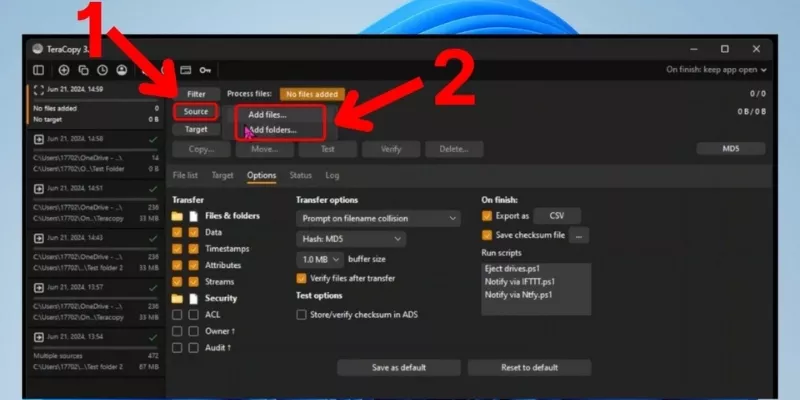
To use TeraCopy, drag and drop files or folders you want to copy into the “No Files” area on the main interface. Then click “Copy to” or “Move to”, and select Browser to choose the destination folder.
- Copy to: Creates a copy of the data from the source folder to the selected destination.
- Move to: Moves data by cutting it from the source folder and pasting it into the destination folder.
Note: You can drag and drop multiple files or folders at the same time to copy them simultaneously.
Once the source and destination are selected, the copy/move process begins. During the process, you can click “More” to view detailed information about files being accessed and copied.
Always on Top Mode
By default, the TeraCopy window stays in “Always on Top” mode, meaning it remains visible on the screen. To disable this, right-click the TeraCopy window and uncheck “Always on Top”.
Using TeraCopy Directly from Windows Explorer
For even easier usage, you can right-click on files or folders you want to copy or move and select TeraCopy from the context menu.
A new TeraCopy interface will appear. Click the first icon to choose the operation mode (Copy or Move), then click Browser on the right menu to select the destination folder. The transfer process will then proceed as described above.
Before copying or moving files, you can check for file errors by clicking the Test button (the third icon from the top). Once the test is complete, you can proceed with copying or moving as normal.
Another useful feature of TeraCopy is post-copy verification. After the copy/move process finishes, you can click Verify to check whether any errors occurred and confirm that copied files are usable.
Important Note
Copying data from one drive or partition to another drive or partition takes longer than copying data within the same drive or partition.
















Reviews
There are no reviews yet.