


Zavi is a free online learning and meeting software developed by Zalo Group. Zavi provides a convenient solution for online learning and virtual meetings, which have become essential for work and education.
The Zavi application supports video meetings with up to 100 participants and continuous sessions lasting up to 24 hours. Users can easily create, share, and join meetings without technical difficulties. Similar to Zoom or other meeting platforms, Zavi displays participant cameras and allows flexible window customization.
Zavi delivers a stable, high-quality online meeting experience, ensuring clear visuals and crisp audio with minimal lag or disconnections, even in large meetings or unstable network conditions.
The software also integrates flexible screen and document sharing, allowing users to share their entire screen, a specific application, or selected documents. This makes presentations, reports, and online classes more interactive and effective.
Key Features of the Zavi Online Meeting Platform
- Sharp video quality and clear audio for smooth meetings and online classes
- Completely free to use
- Strong security with two-layer protection and Zalo identity verification
- Full protection of user data against leaks and identity theft
- Built-in chat for public and private messaging
- Simple and intuitive interface
- Unlimited meeting duration
- Ability to remove participants to maintain meeting order
- Meeting lock feature to prevent late participants from joining
- Easy login using Zalo accounts
- Note-taking feature to record important discussion points
Zavi’s security system uses data encryption, meeting passwords, and access controls to protect communications and sensitive information, ensuring a secure online meeting environment.
How to Use Zavi for Online Meetings
How to Log In to Zavi
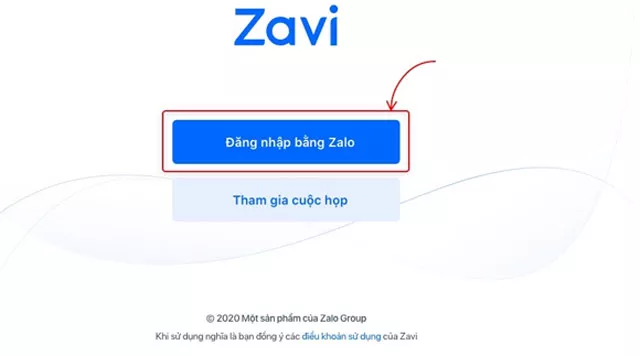
Step 1: After installing Zavi, click Log in with Zalo.
Step 2: Enter your Zalo account credentials.
Once logged in, you will be taken to the Home Screen of the application.
How to Create a Meeting on Zavi
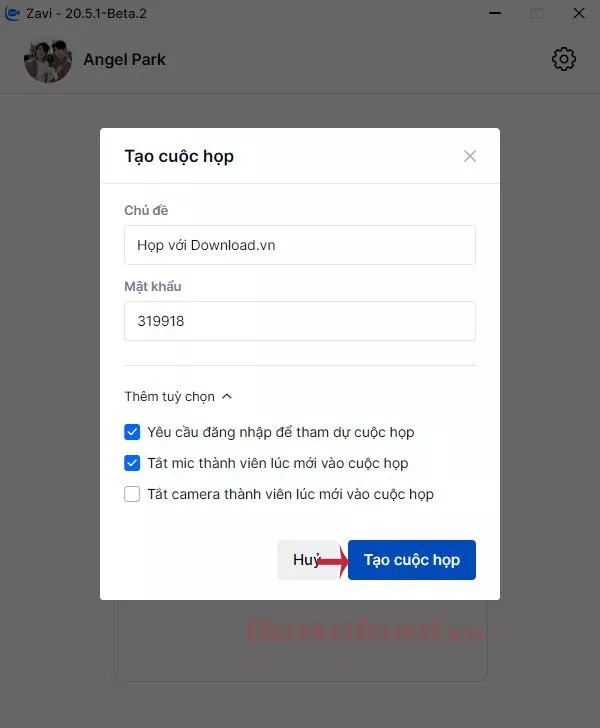
Step 1: From the Home Screen, click Create Meeting.
Step 2: Set the meeting name and password, and configure advanced settings if needed.
Step 3: Click Start to begin the meeting.
How to Share and Invite Participants on Zavi
Step 1: Inside the meeting room, click Share to invite participants.
Step 2: Choose a platform such as Zalo or email to send the meeting link.
Frequently Asked Questions About Zavi
How do I create a meeting room or virtual classroom on Zavi?
After logging in, select Create Room, configure access settings, and share the invitation link.
How many participants does Zavi support per meeting?
The free version typically supports up to 10 participants, while paid plans can support up to 100 or more.
Can meetings be recorded on Zavi?
Yes, Zavi supports audio and video recording.
Does Zavi support screen sharing?
Yes, users can share their entire screen or a specific application window.
I forgot my Zavi password. How can I recover it?
Use the Forgot Password option on the login screen to receive a recovery code.
Is Zavi free to use?
Zavi offers a free version and paid plans with additional features.
What should I do if I encounter errors while using Zavi?
Update the app to the latest version, check your internet connection, or contact Zavi support.













Reviews
There are no reviews yet.