


SuperCopier – Faster and More Efficient File Copying on Windows
Copying large amounts of data often takes a long time and can significantly affect system performance. SuperCopier is a tool designed to solve this problem.
The default Windows file copy feature does not display detailed information about the copying process and can sometimes be unstable. Many users experience long waiting times even when copying relatively small files. When transferring large amounts of data, the hard drive may prioritize the copy process, which can slow down the entire system.
SuperCopier is a powerful and free tool that replaces the default Windows copy function. It increases copy speed, displays detailed transfer information, and optimizes the copying process to minimize the impact on system performance.
After installation, the SuperCopier icon appears in the system tray. You can copy or move files as usual (using Copy or Cut), and instead of the standard Windows copy dialog, the SuperCopier interface will appear.
Detailed Copy Information
SuperCopier displays:
- Transfer progress percentage
- Data transfer speed
- Estimated time remaining
When copying folders with multiple files or running multiple operations simultaneously, click “Fold Up” in the Copy List tab to view files currently being processed and those already completed.
If an error occurs (such as insufficient disk space or permission issues), SuperCopier displays detailed information in the Errors Log tab, helping users identify and resolve problems quickly.
Once the copy or move process is complete, the SuperCopier window automatically closes.
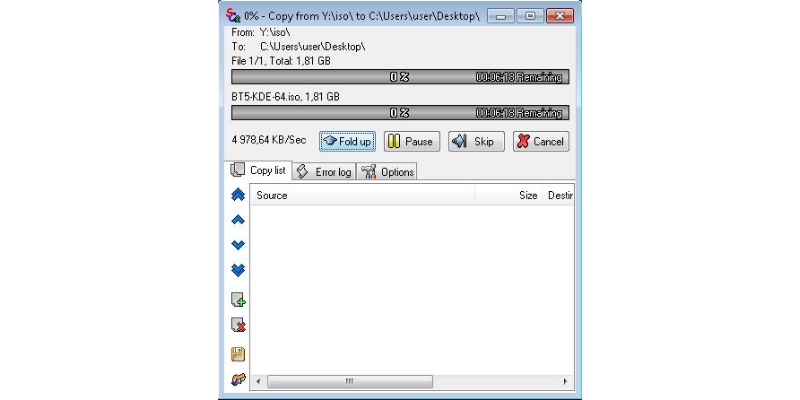
Data copying tool SuperCopier
Interface and Configuration Options
By default, the SuperCopier window is set to “Always on Top”, meaning it stays visible when switching applications. To minimize it, click the Minimize button.
To change this behavior:
- Right-click the SuperCopier icon in the system tray and select Configuration.
- Select User Interface from the left menu.
- Enable “Minimize window to taskbar”.
SuperCopier uses KB/s as the default speed unit. For large transfers, you can switch to MB (Megabytes) under Size Unit in the Configuration window.
You can also customize colors and fonts under the Progress Bars section.
Conclusion
With SuperCopier, you no longer need to wait excessively for file transfers or worry about system slowdowns. The software provides a faster, more informative, and more efficient file transfer experience on Windows.














Reviews
There are no reviews yet.